Bring a ProPresenter 7 library into FlowCast
Import your .pro and .probundle files. Scripture slides become themes, the other slides become presentations, and pictures and videos go to Media.
 FlowCast team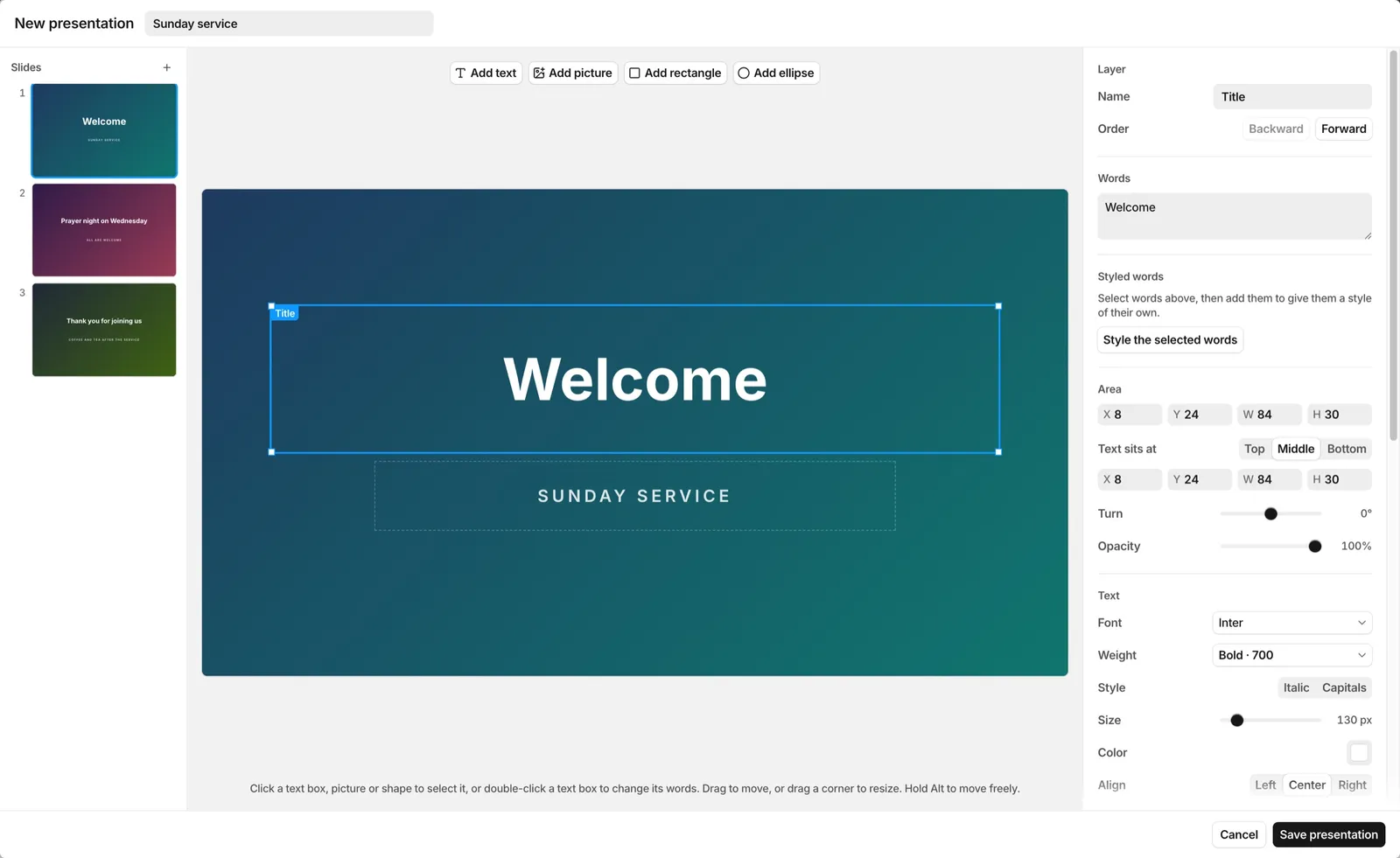
If your slides are in ProPresenter 7, you do not have to make them again. FlowCast imports ProPresenter 7 files.
Import the files
- In the Presentations tab bar, click Import.
- Select ProPresenter 7 files:
.probundlefiles or.profiles. You can select many files at once.
ProPresenter 6 files do not work.
What FlowCast does with each file
- A slide with a verse and its reference, such as a slide named Scripture, becomes a theme in the Themes panel. The verses that you show can then use its look.
- The other slides of the file become a presentation in the Presentations panel. A file with only scripture slides gives themes and no presentation.
- The pictures and videos of the slides go to the Media panel.
FlowCast downloads the fonts of the slides from Google Fonts the first time. It keeps them on the computer, so the slides show in those fonts without an internet connection. A font that Google Fonts does not have, such as a font that you bought, shows only when it is installed on the computer.
Use the slides in a service
Click a presentation to see its slides. Click a slide to show it in the preview. Double-click it, or push Enter, to send it live. The arrow keys then move through the slides.
To change a slide, right-click the presentation to edit it. In the presentation editor, you can change the text, pictures, shapes, and background of each slide. To keep the presentation for a service, right-click it and add it to the schedule.
Share themes and presentations
To move your work to a different computer, use a FlowCast bundle. A bundle holds themes and presentations with their pictures.
- To export, right-click a theme or a presentation and click Export….
- To import, click Import in the Themes or Presentations tab bar.
An imported item with the same id as an item you already have replaces it.
Share this article: