Show the audience screen in Zoom or Google Meet
FlowCast can show the audience screen on a web page. In a video call, you share one browser tab, not your full screen.
 FlowCast team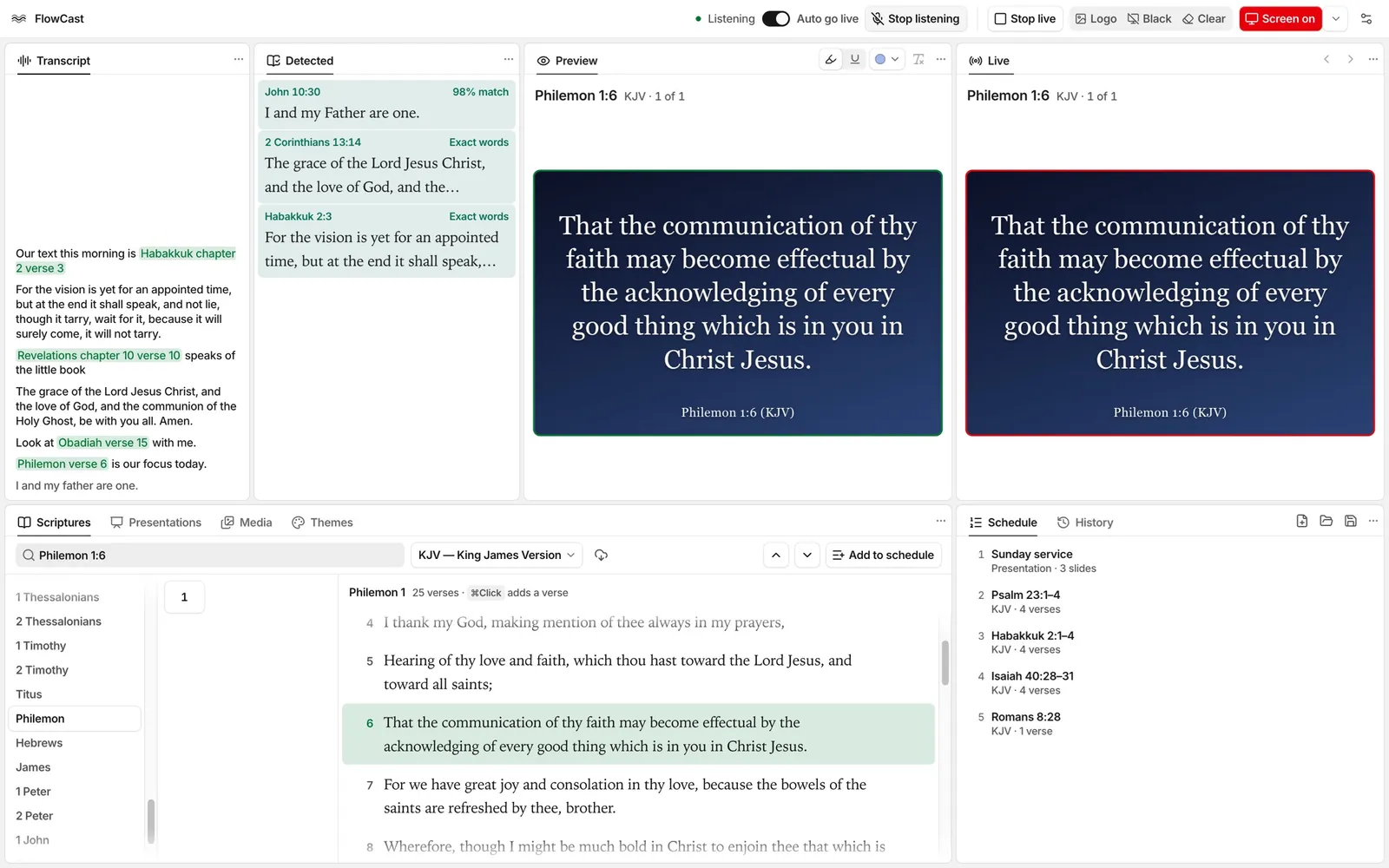
When a church meets in Zoom or Google Meet, the people at home want to see the verses too. A share of your full screen can also show the control window. FlowCast can show the audience screen on a web page instead. You then share only that browser tab.
Turn on the web page
- Click the Settings button in the top bar.
- Click Web page, and turn on the switch. Web page then shows in the menu next to Screen off.
- In that menu, select Web page.
- Click Screen off. The page opens in the browser at
http://127.0.0.1:4750/and shows the audience screen. - In the video call, share the browser tab of the page.
Only this computer can open the page.
During the service
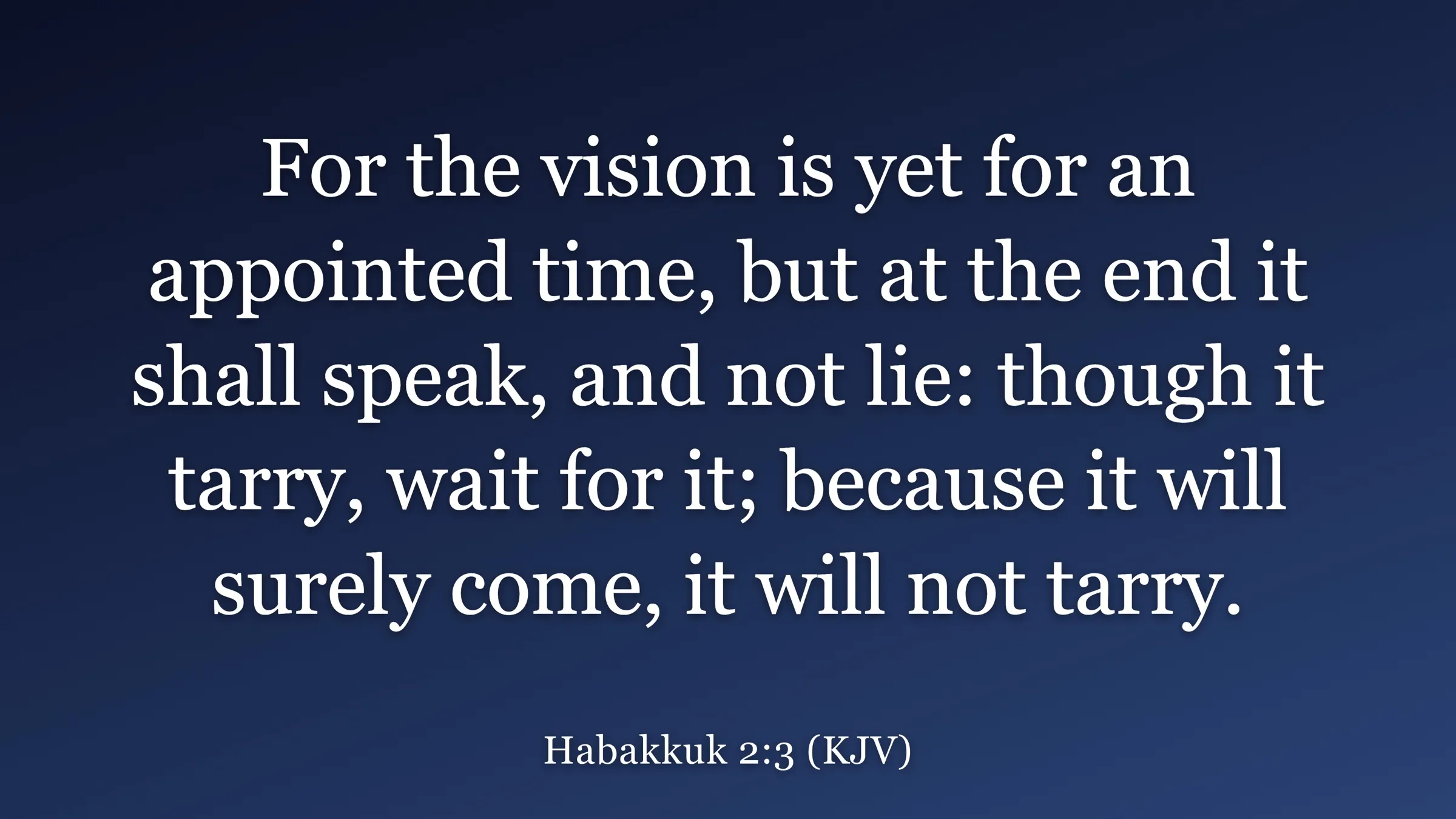
The page shows the audience screen. When you click Screen on, the page goes black. When you click Screen off again, the same browser tab shows the audience screen again. You do not have to share the tab again in the call.
If a different program uses port 4750, FlowCast uses a different port. The menu then shows the address.
Go back to a display
To show the audience screen on a display again, select the display in the menu next to Screen off.
Share this article: